MistBar app icon

Hide the Menu-Bar Clutter with MistBar Keep What You Use and Hide the Rest Plus Much More

MistBar slides the icons you never click out of the way, and keeps the handful worth having a click or keystroke away: a clipboard manager, mail, notes, launchers, and AI usage, all built in.

Pay once · up to 3 Macs · Apple silicon and Intel · macOS 14+

BeforeA cluttered macOS menu bar packed with app icons
AfterThe same menu bar with everything tucked behind MistBar’s hub

Your menu bar fills up fast, and before long you can’t find the ones that matter.

MistBar tucks the ones you never look at behind a single hub, so all that’s left is what you actually use. A hover, click, or shortcut brings them back.

On a MacBook it hides icons with macOS Accessibility, not Screen Recording, so hiding never captures your screen. On a Mac without a notch, hiding on macOS 27 needs Screen Recording, and MistBar asks for it. Optional Tight Icon Spacing on macOS 27 also asks for it, and it is off by default.
The Tools You Reach for All Day

A paste, a quick note, a glance at your inbox: it all goes faster when the tool’s already there instead of buried in another window.

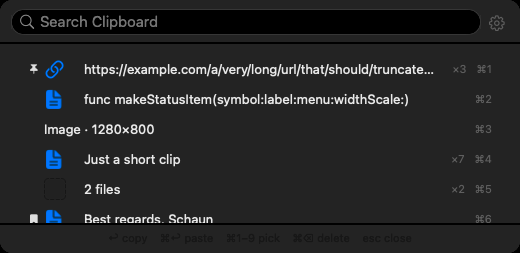
MistBar’s searchable clipboard manager

Clipboard Manager and Snippets

Everything you’ve copied, a keystroke away. Scroll back through your history, pin the snippets you paste over and over, and drag a clip straight into any app. Images and files live here too, so you’re never hunting through another app to find them.

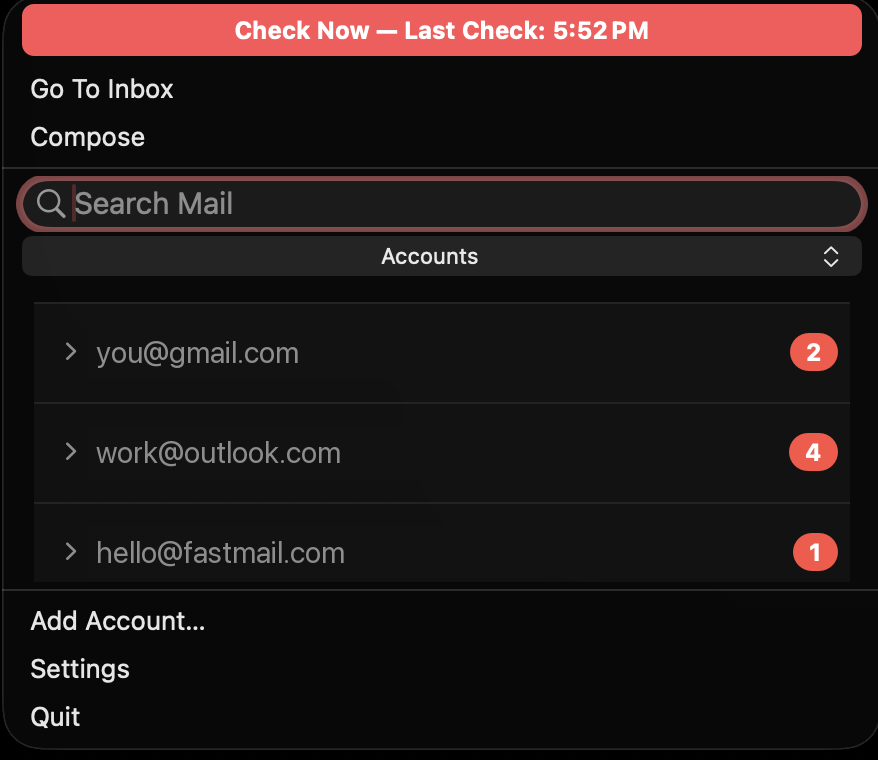
MistBar’s mail dropdown with three accounts grouped, each showing its own unread count

All Your Mail in One List

Every inbox in one place. Gmail, Outlook, iCloud, and Fastmail share a single hub, each with its own unread count. Write, reply, and undo a send without leaving the menu bar, and every account talks straight to its own provider.

(The accent color here is whatever you’ve picked in System Settings, so every MistBar feature matches your Mac.)

The Rest of the Toolkit

Quick Search

One field for your apps, folders, clipboard, and even the icons you’ve hidden away.

App Launcher

Open any app right from the menu bar. See everything you’ve installed or just the ones you want, with your most-used floated to the top.

Organize Apps

Create custom folders, group your apps into them, and hide the ones you never open.

Folders

Get to any folder on your Mac from the menu bar. Pin the ones you use most, browse what’s inside, and drag files straight out to wherever you need them.

Notes

Capture a thought with a shortcut straight into Apple Notes. Pin one to the dropdown, append to it, or edit without losing your place.

Text Expansion

Type a short abbreviation and MistBar fills in the whole thing, whether that’s a signature, an address, or a canned reply, anywhere you type.

AI Usage in the Menu Bar

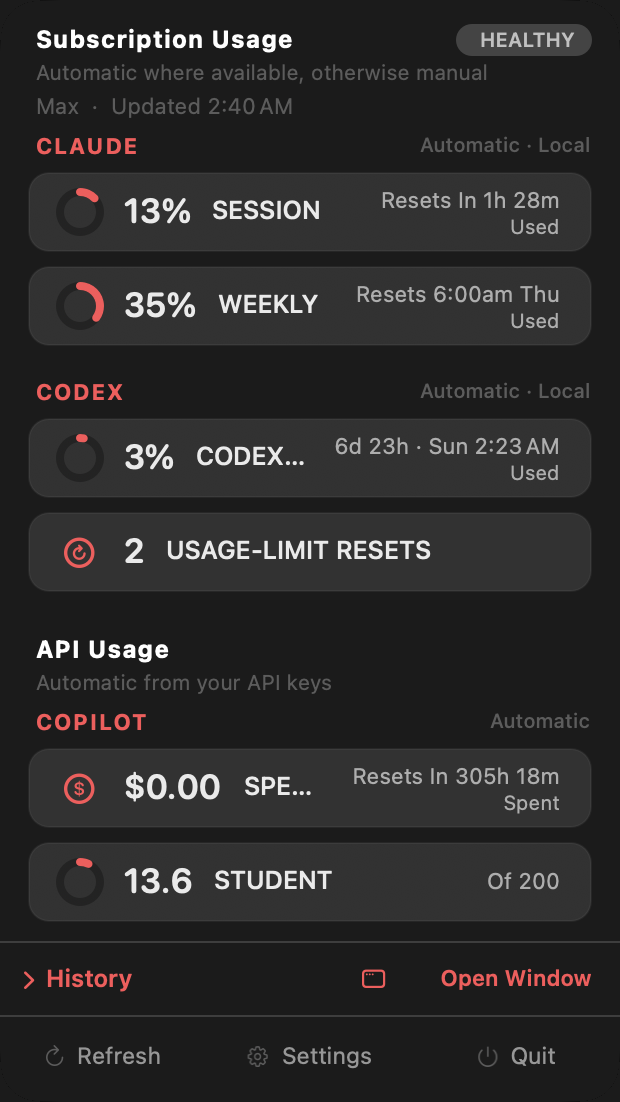
Live in Claude Code, Codex, or Copilot? Keep an eye on what you’ve used without breaking your flow.

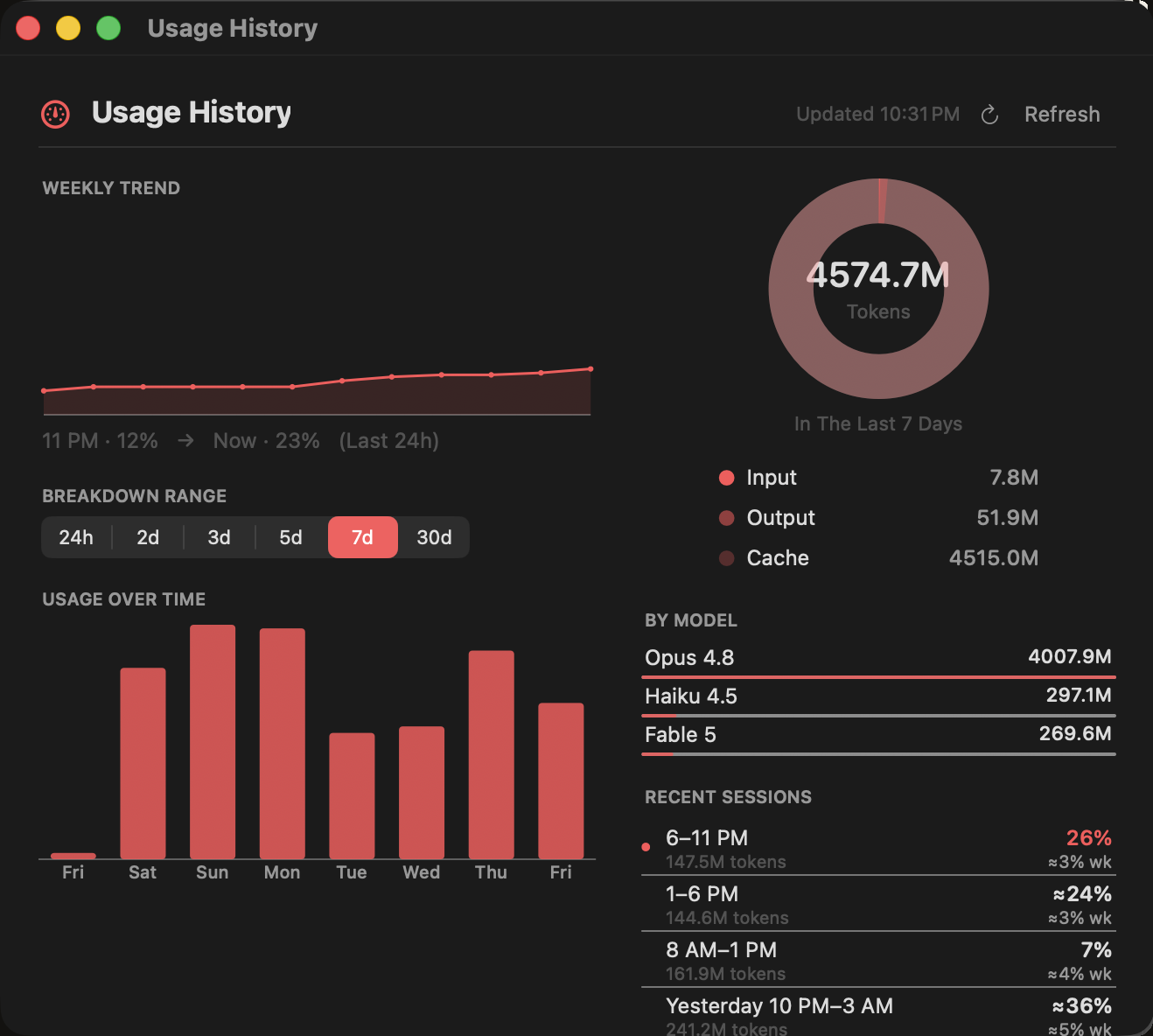
MistBar keeps your current usage and reset time right in the menu bar, then opens up to a full history: weekly trend, token breakdown, and by-model totals. For Claude and Codex it just reads what’s already on your Mac, so there’s nothing to set up.

MistBar’s AI usage dropdown showing Claude, Codex, and Copilot MistBar’s Usage History window with weekly trend, token breakdown, and by-model totals
No Screen Recording On A MacBookOn a MacBook, hiding runs on Accessibility, so it never captures your screen. On macOS 27, Macs without a notch and the optional Tight Icon Spacing ask for it.
Pay OnceBuy it a single time, run it on three Macs, and keep getting updates without a subscription.
Your Data Stays PutMistBar collects absolutely nothing. No account, no analytics, no trackers, and your data never leaves your Mac.
Built for macOS 14+Signed, notarized, and native on Apple silicon and Intel.

One Low Price. One Time Only. Yours Forever.

$9.99$19.99

Launch price · up to 3 Macs · free updates

Buy Now

✓ 14-day money-back guarantee. If for any reason at all you’re not satisfied, you’re guaranteed a full refund. No questions asked.

Like every SKJ APPS utility, MistBar is specifically designed to provide a feature-rich and useful experience, then stay out of the way, so it feels like a normal part of macOS rather than one more thing to manage.

Questions

Why Not Screen Recording?

Because on a MacBook, hiding doesn’t need it. MistBar hides icons using Accessibility and a little menu-bar spacing, so hiding never captures your screen and never brings up the purple recording dot. On a Mac without a notch (an iMac, Mac mini, Mac Studio, or an external display set as the main screen), macOS 27 leaves no notch edge to hide against, so MistBar photographs the bar to hide icons there and asks for Screen Recording the first time you hide. On macOS 27 there is one optional setting, Tight Icon Spacing, that closes the wide gaps macOS leaves between icons. It is off by default, and turning it on asks for Screen Recording, because MistBar has to re-read the bar to redraw it. While it is on, macOS may show its purple recording indicator when that happens. The image is never sent anywhere.

Where Does My Data Go?

Absolutely nowhere. MistBar never collects anything, and it all stays on your Mac. The only time it goes online is to check for updates and verify your license.

Is There a Subscription?

No. You pay once and run MistBar on up to three of your Macs, updates included.

Which Macs Can Run It?

Any Apple silicon or Intel Mac on macOS 14+ (Sonoma), including macOS 15, 26 and 27.

Can I Get a Refund?

Sure. Email support@mistbar.app within 14 days and you’ll get a full refund, no questions asked. See the Refund Policy for details.

Still Have a Question?

Something broken, or have an idea? Email me. I build these apps solo, use them daily, and read every message.

support@mistbar.app